Email Protected Salary Slips PDFs
1. About Tables
Tables were introduced in Excel 2007.
Tables are backbone of next six components of Modern Excel. Slicers, Data Model, Measures, Power Pivot, Power Query, and Power BI work only when data is in Tables.
Adopt them.Get addicted to them. You will say why did I not know about them all these days!
2. Why “always” Tables?
1. With data in a Table, the Pivot Table is for life. Add new row / columns. The Table expands automatically. Refresh your Pivot. The new data gets added to all the reports. You will not have to readjust the range, if data is added or removed
2. Downloaded data runs into hundreds, if not thousands, of rows. You filter them the traditional way. You can filter data sets with thousands of rows very comfortably using Slicers. But Slicers work only when the data is in a Table!
3. Do you want to forget “Double-Click” to copy your formula? If Yes, convert data into Tables. The formulas automatically fill up and down!
4. You would not have to keep formatting your dates and numbers “your way” when you use Tables. Formatting, including Conditional Formatting, fill down automatically.
3. A few – not show stopper - limitations
1. You cannot copy or move multiple sheets if any sheet contains a Table.
2. Tables do not expand automatically on protected sheets, even if the cells below the table are unlocked.
3. Custom Views are not allowed in a workbook that has one or more Tables.
4. How to Insert/Create a Table
1. Ensure your cursor is in a cell within the range you want to convert to Table.
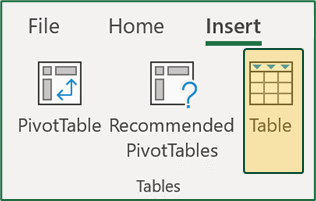
2. Click on Insert tab. Click on Table icon.
3. If your data has column heading, Excel intellisense will automatically select the checkbox. If it is not ticked automatically, you need to manually select it if your data has column headers. If you are inserting Table on blank cells, let the check box remain un-selected. Excel will create a Column Header row automatically.